Oracle Java Platform Extension at a glance

Oracle Java Platform Extension v26.0.0 for VS Code
Oracle's Apache-NetBeans-powered Java extension for VS Code shipped v26.0.0 on June 8 with four changes: VS Code variable substitution across 13 settings, a Run Configuration GUI panel in the Explorer sidebar, inline formatter settings via `jdk.format.options`, and a configurable Maven `settings.xml` path. At 5.86 million installs with a 4.62/5 rating (vs Red Hat's 3.32/5 at 54.9 million installs), the Oracle extension grows faster and rates higher, and adds three features Red Hat doesn't offer: interactive Java Notebook, built-in JShell REPL, and a JDK Downloader.

研究速览
Oracle's official Java extension for VS Code hit v26.0.0 on June 8. It has 5.86 million installs and a 4.62/5 rating — better than Red Hat's 3.32/5 — and carries three features the Red Hat extension doesn't offer. The install count gap is wide (Red Hat sits at 54.9 million), but the growth rate tells a different story: Oracle grew 2.71% month-over-month versus Red Hat's 1.37% as of mid-June 2026. 1 2
Plugin: Java Platform Extension for Visual Studio Code (
Oracle.oracle-java) · Version: v26.0.0 · IDE: VS Code · Language: Java · Category: Full-stack Java language support · License: Apache 2.0 · Price: Free · Install from VS Code Marketplace 1What it is
The Java Platform Extension is Oracle's own VS Code extension for Java development, powered by an Apache NetBeans 29 language server. It shipped v26.0.0 on June 8, 2026, and has accumulated 5.86 million installs with a 4.62/5 rating on the VS Code Marketplace. 1 3
The runtime requirement is JDK 17 or later for the language server itself; the extension supports compiling and running projects targeting JDK 8 through JDK 26. An OpenVSX Registry build is also available for VS Code forks such as VSCodium, with 411K downloads there. 4
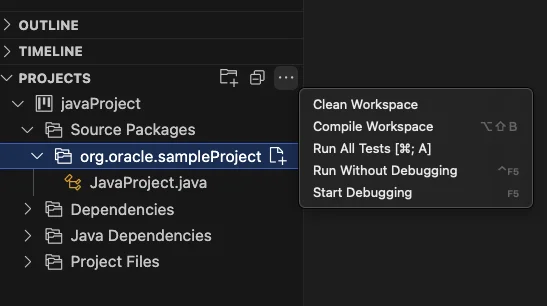
What's new in v26.0.0
Three of the four changes in v26.0.0 address friction points that made the extension feel less polished than a native Java IDE. 5
VS Code variable substitution in settings. Thirteen settings now accept standard VS Code variables —
${workspaceFolder}, ${userHome}, ${env:NAME}, and others. Affected settings include jdk.jdkhome, jdk.project.jdkhome, and all Run Configuration fields. Before this change, any path in those settings had to be an absolute string, which made workspace-portable configs impossible. 5A practical before/after:
// Before v26.0.0 — hardcoded, breaks on other machines
"jdk.jdkhome": "/Users/alice/.sdkman/candidates/java/21.0.3-tem"

// After v26.0.0 — works across machines with the same env var
"jdk.jdkhome": "${env:JAVA_HOME}"
Run Configuration GUI panel. The extension now exposes a
RUN CONFIGURATION section directly in the Explorer sidebar. Four fields — Arguments, VM Options, Environment, and Working Dir — show their current values inline and can be edited without touching launch.json. 5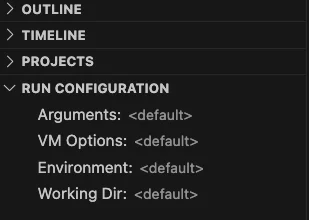
Formatter settings via
jdk.format.options. NetBeans formatter options (indentation width, brace style, blank lines, etc.) can now be set directly in settings.json as key-value pairs, rather than requiring a separate .java-formatter.xml file. The format follows NetBeans' formatter property names: 5"jdk.format.options": {
"text_limit": "120",
"expand_tabs": "false",
"tab_size": "4"
}Custom Maven
settings.xml path. jdk.maven.userSettings accepts an absolute path to a custom settings.xml, which matters for teams that use a non-default artifact repository or credential file. Relative paths are not supported yet. 5Under the hood, v26.0.0 upgrades the NetBeans language server to Apache NetBeans 29, which brings Gradle toolchain support up to v9 and general stability improvements. 6
Standout features not in Red Hat's extension
The extension covers the standard Java IDE toolkit — code completion, Maven/Gradle builds, 20+ refactorings, JUnit/TestNG test runner, debugger with attach-to-process support, Javadoc completion, and organize-imports on save. Three features stand out because they have no equivalent in the competing Red Hat extension (
redhat.java): 1 3Interactive Java Notebook (
.ijnb). Run Java code in a Jupyter-style notebook directly in VS Code. Create one with Java: Create New Notebook... from the Command Palette. Each notebook has + Code and + Markdown cells; code cells execute against the JVM and persist output. Switching the Project Context selector loads the classes from the selected Maven/Gradle project into the notebook's classpath — useful for exploratory testing of library APIs without writing a main method. Notebooks can be renamed to .ipynb and opened in Jupyter. 3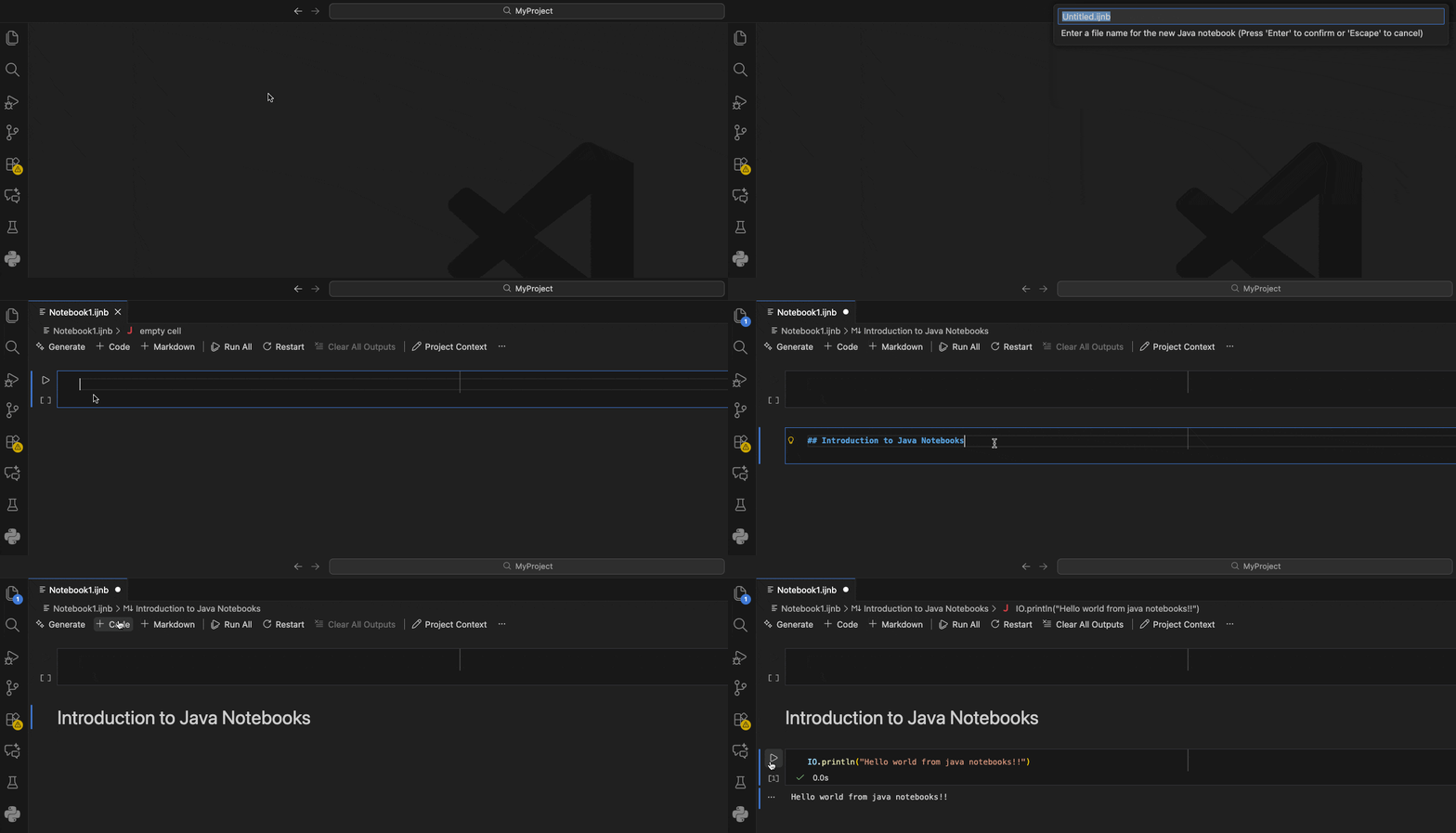
Built-in JShell REPL.
Java: Open JShell... opens an interactive JShell session (JShell is Java's interactive read-eval-print loop, introduced in Java 9) in the VS Code terminal panel. When a project is open, the current project's classes load automatically into the REPL's classpath — you can instantiate your own classes, call methods, and inspect return values without any boilerplate. 3JDK Downloader. If no JDK is found on the system, the extension opens a download UI listing Oracle JDK and Oracle OpenJDK builds across multiple versions and platforms — so a developer without Java already installed can go from zero to running Java code in VS Code without leaving the editor. 1
How it compares to Red Hat's Java extension
Red Hat's Language Support for Java (
redhat.java) is the dominant player: 54.9 million installs versus Oracle's 5.86 million. But install count is the only dimension where Red Hat leads cleanly. 2 1| Dimension | Oracle (Oracle.oracle-java) | Red Hat (redhat.java) |
|---|---|---|
| VS Code Marketplace installs | 5.86M 1 | 54.9M 2 |
| Rating | 4.62 / 5 (29 reviews) 1 | 3.32 / 5 (184 reviews) 2 |
| Monthly install growth | 2.71% 1 | 1.37% 2 |
| Language server | Apache NetBeans 29 | Eclipse JDT |
| Language server JDK requirement | JDK 17+ | JDK 21+ (bundled JRE in platform builds) |
| OpenVSX availability | Yes (411K downloads) 4 | No 2 |
| Java Notebook | ✅ | ❌ |
| JShell REPL | ✅ | ❌ |
| JDK Downloader | ✅ | ❌ |
| Run Configuration GUI | ✅ (v26.0.0) | ❌ |
| Kotlin/Scala/Gradle Kotlin DSL | ❌ | ✅ |
| LightWeight/Hybrid startup modes | ❌ | ✅ |
| Null analysis | ❌ | ✅ |
The rating gap (4.62 vs 3.32) reflects a smaller but more satisfied user base, not necessarily a better extension in absolute terms — the Red Hat extension has a much larger surface area and review pool. If you specifically need Kotlin, Android, or Scala support in the same extension, Red Hat is the only option. If you work exclusively in Java and want the Notebook and JShell capabilities, Oracle's extension covers the same IDE basics while adding those two unique tools.
正在加载内容卡片…
Known issues
Four issues are listed in the current extension documentation: 1
Duplicate tags in
pom.xml. Using extension actions to enable preview features or add test frameworks can introduce duplicate XML tags, causing compilation failures. Fix: manually remove the duplicates, then add --enable-preview as a VM argument in the Run Configuration panel.Test Project panel doesn't update. Running
Project: Test Project executes tests but the Testing/Test Results panel doesn't refresh. Test output lands in the Terminal or Debug Console instead.jdk.advanced.disable.nbjavac unavailable on JDK 26 and JDK 27+ EA. On JDK 26, leave this setting disabled. For JDK 27 Early Access builds, set jdk.jdkhome to a JDK 26 installation and jdk.project.jdkhome to the EA JDK path — the language server runs on 26 while your project compiles against 27.Large workspace performance. The extension scans the entire workspace on startup. Avoid adding very large directories (and especially your home directory) as workspace roots.
Install and requirements
# From VS Code Command Palette (Ctrl+Shift+P / Cmd+Shift+P)
ext install Oracle.oracle-java

# Or from the terminal
code --install-extension Oracle.oracle-java| Requirement | Value |
|---|---|
| VS Code | Any current version |
| Language server JDK | JDK 17 or later |
| Project JDK | JDK 8 through JDK 26 |
| OS | Windows, macOS, Linux |
| Maven / Gradle | Detected automatically from project |
After install, open a Maven or Gradle project and the extension activates automatically. If no JDK is found on
PATH or JAVA_HOME, the JDK Downloader prompt appears. Set jdk.jdkhome to point at your preferred JDK, or use the new ${env:JAVA_HOME} form as of v26.0.0. 5正在加载统计卡片…
Cover image from Inside.java, © Oracle Corporation.
围绕这条内容继续补充观点或上下文。